
GIMP
UserLAnd TechnologiesArt & Design
3.2343.00 Reviews
- Version
- 26.05.29
- Installs
- 50.00K
- Age Rating
- Everyone
Screenshots
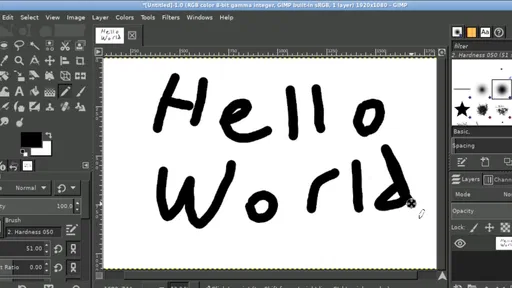
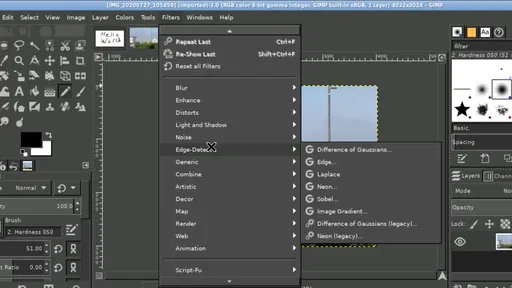
Our Review of GIMP
 Analysis by Appyee
GIMP makes the most sense when you want more control than a quick-filter editor offers, and you are willing to spend time learning how its tools fit together. I see it as a serious creative workspace rather than a one-tap photo fixer: it can suit detailed retouching and image-making, but its breadth can feel like work if all you need is a fast crop or a polished social post.
That trade-off is central to the experience. GIMP is an art and design app from UserLAnd Technologies, with an average rating of 3.0 from around 1.6K ratings and more than 50K installs. It costs $1.99, is rated Everyone, and its current version is 26.04.24; it was released on April 6, 2022. Those details put it in a different position from many casual editors: this is a paid tool aimed at people who expect to do more than apply a preset, and its modest rating is a reason to approach it with realistic expectations rather than assume it will feel effortless.
Where a fuller editing workspace earns its keep
The practical advantage of GIMP is the ability to build an edit in stages. Layers let me keep separate elements apart, while masks make it possible to adjust part of an image without treating every change as permanent. That matters when, for example, I want to brighten a subject but leave the background alone, or combine a cut-out object with a new background and still be able to refine the edges later. A filter can be useful, but a layered workflow gives me more room to correct my own decisions.
For a small business owner, that could mean preparing a product image, removing distractions, placing it on a consistent background, and adding a simple graphic for a listing. For a hobby artist, it could mean sketching, testing color choices on separate layers, and revising one area without repainting the rest. These are not jobs where every tool needs to be used at once. The value is having room to grow from a simple adjustment into a more deliberate composition.
One useful habit is to separate experiments from the parts of an image I already like. I would duplicate a layer before a strong filter or major retouch, then compare the result with the untouched version. That small step makes it easier to back out of an edit without losing the earlier work. It also encourages a more measured approach: instead of stacking effects because they are available, I can judge whether each one actually improves the picture.
What the learning curve asks of you
GIMP is less immediately friendly than a phone editor built around large buttons and automatic enhancements. The interface offers a lot to explore, and the controls that make sense after practice may be hard to find on a first visit. I would not choose it for a rushed edit while standing in a queue if I had never used it before. A simpler app is usually better when speed and predictable results matter more than fine control.
It also helps to begin with a specific task, not the vague goal of learning every feature. Try cropping and correcting one photo, then explore how a layer or mask changes the workflow. After that, a small composite gives you a reason to understand selections and edge cleanup. This is more manageable than opening a complex project and trying to discover the entire interface at once. Online tutorials can help, but the most useful ones are those that match the exact kind of edit you want to make.
There is a practical trade-off between flexibility and convenience. A streamlined editor may make a portrait look better in seconds, while GIMP asks you to make more choices and take responsibility for the result. For careful work, that control is valuable; for routine resizing, quick color tweaks, or an automatic portrait enhancement, it can feel like unnecessary friction. I would keep a simpler editor in mind for those quick jobs rather than expect one app to be ideal for every image.
Choosing it for the work you actually do
I would recommend GIMP to curious beginners who enjoy learning tools, people who need layered edits, and artists who want one place to try both photo work and digital illustration. It is also a reasonable option for someone moving beyond basic filters and wanting to understand how selections, masks, and separate image elements work together. The strongest fit is a user who values control enough to accept a less polished first impression.
I would steer away from it if you mostly want automatic results, a very simple interface, or an edit completed in a few taps. It may also disappoint someone expecting a desktop-style workspace to feel naturally designed for a small touchscreen. Before paying, I would check that the app’s working style suits the device and the kind of projects I have in mind; a specialized mobile drawing tool may be more comfortable for illustration, while a lightweight photo editor may be better for everyday touch-ups.
For a realistic everyday example, imagine taking a photo of a handmade item at home and wanting to share it with a craft group. A quick editor can brighten the whole picture, but that may wash out the item or leave a distracting object in the frame. In GIMP, I would make a copy to protect the original, adjust the subject separately where possible, and check the edges before exporting the finished image. The extra care is worthwhile if the picture represents something I made; it is probably overkill for a casual snapshot I will view once and forget.
Getting Started with GIMP
First off, downloading GIMP is a breeze. Just head over to your app store, and before you know it, you’re ready to unleash your inner artist. The app is open-source, which is a fancy way of saying it's free and constantly being improved by a community of developers. Pretty sweet, right?
Once you open the app, you might feel a bit overwhelmed at first. It’s packed with features, and I mean packed. But don’t worry, after a little bit of exploring, you’ll start to get the hang of it. The UI might not be as sleek as some other apps, but it’s functional and gets the job done.
Features That Make GIMP Stand Out
Let’s talk features. One of the things I love about GIMP is its versatility. Whether you’re doing basic photo retouching or diving into complex digital illustrations, this app has got your back. You’ve got layers, masks, and filters galore. It’s like having a mini Photoshop in your pocket.
Another cool feature is the ability to customize the interface. You can move things around, dock tools wherever you want, and basically, make it your own. If you’re someone who likes to work in a particular way, this is a big plus. Plus, the app supports a ton of file formats, so you’re not limited in any way.
Performance and Usability
In terms of performance, GIMP runs smoothly on most devices. I did notice that it can be a bit heavy on older devices, but nothing too crazy. Just make sure you’ve got enough storage and RAM to handle it, especially if you’re working with large files.
Usability-wise, there’s a bit of a learning curve if you’re new to photo editing. But once you get past that, it’s pretty intuitive. There are tons of tutorials online, and the community is super helpful if you ever get stuck.
Why You Should Try GIMP
If you’re looking for a powerful, free photo editing app, GIMP should definitely be on your radar. It’s perfect for both beginners and seasoned pros. You can start with simple edits and slowly work your way up to more complex projects. It’s like having a digital art studio right at your fingertips.
Whether you’re an artist, a photographer, or just someone who likes to dabble in creative projects, GIMP offers the tools and flexibility you need to bring your vision to life. And hey, you can’t beat the price!
So, give it a shot. Download GIMP, play around with it, and see what amazing creations you can come up with. Who knows, it might just become your go-to app for all things photo and art-related.
A sensible way to judge it
One point I would settle before starting a longer project is how I plan to save and revisit my work. In a layered edit, keeping an editable working copy separate from the flattened image intended for sharing makes later changes much less painful. I would also inspect the final image at its intended viewing size: an edge that looks tidy when zoomed in may feel harsh at normal size, and a subtle adjustment can disappear once the image is viewed on a phone.
That kind of checking is more useful than chasing a perfect-looking preview. A careful workflow in GIMP means making a small change, comparing it with the original, and deciding whether it serves the image. This is especially important with retouching, where smoothing or removing details can quickly make a photograph look artificial. I prefer a restrained result that still feels like the original scene over a technically impressive edit that draws attention to itself.
How it compares with familiar alternatives
Compared with the usual mobile photo editors, GIMP is the less immediate but more flexible choice. Many lightweight alternatives are built around presets, automatic corrections, and a short path from opening a photo to sharing it. That convenience is real, and for routine snapshots I would often take it. GIMP is more appealing when a project benefits from separate elements, selective adjustments, or several rounds of revision rather than one quick overall effect.
Against dedicated drawing apps, the balance shifts. A purpose-built illustration app may offer a more comfortable drawing experience and a clearer focus on brushes and canvas work. GIMP’s appeal is broader image editing: it can bring photography and graphic elements together, but users who primarily draw may prefer a tool designed around that activity. The right comparison is therefore not simply which app has more tools; it is which workflow makes the work feel natural.
File support can also matter when moving between tools. GIMP’s broad format support is useful when an image comes from different sources, but I would still test a copy of an important project before relying on a particular format to preserve everything I need. When exchanging work, a flattened image is straightforward to view, while an editable project is more valuable for continued changes. Choosing between those outcomes early prevents an avoidable surprise later.
When I would pass, and when I would stay
The paid price makes the decision more concrete than with a free quick-editing tool. I would not buy it just because I occasionally crop photos or want an automatic enhancement; those needs do not make good use of a layered workspace. I would consider the purchase if I expected to return to projects, refine selections, or create images with multiple components. The Everyone age rating makes it broadly accessible, but that does not remove the need to learn the interface or judge whether the workflow fits the person using it.
The rating is another reason I would approach it as a tool with a particular audience rather than a universally smooth recommendation. A 3.0 average suggests the experience may not satisfy everyone, and in my view the learning curve and device demands are exactly the kinds of issues that can divide users. The current version, 26.04.24, is the version to keep in mind when checking compatibility; the minimum operating-system requirement is Android 7.0. If your device is older or already struggles with large image files, I would start with a modest project rather than assume every edit will feel fluid.
My first session would be deliberately small: open a photo, make one reversible adjustment, save a working copy, and export a version for sharing. That answers the questions that matter most in practice: whether the controls feel manageable, whether the device handles the image comfortably, and whether the saved result suits the intended use. If that short trial feels satisfying, GIMP has room for more ambitious work. If it feels like wrestling with menus for a minor improvement, a simpler editor is likely the better everyday companion.
Final verdict
I see GIMP as a capable, demanding choice for people who want to shape an image rather than simply polish it. Its layers, masks, filters, interface customization, and file-format flexibility create room for thoughtful work, but none of that makes the learning curve vanish. I would recommend it to patient beginners, hobby artists, and photo editors who want control over individual parts of an image. I would skip it for quick, automatic fixes or a frictionless mobile experience. If you are curious about editing and willing to learn through small projects, it is worth considering; if convenience is your priority, a simpler alternative will probably make you happier.
Verdict
Strengths of GIMP
- Open-source and free to use.
- Highly customizable interface.
- Wide range of plugins available.
- Supports various file formats.
- Frequent updates and community support.
Limitations of GIMP
- Steep learning curve for beginners.
- Interface can be overwhelming.
- Limited 3D image editing features.
- Some tools lag on older devices.
- Occasional stability issues.
Other Releases by UserLAnd Technologies
View All
Inky - Run Inkscape on Android
Art & Design2.8

OG Trail - Travel to Oregon
Educational4.1
Similar Picks in This Category
View All
Canva: AI Photo & Video Editor
Canva4.8

PENUP – Drawing-sharing SNS
Samsung Electronics Co., Ltd.4.5

Crafto
Kutumb App4.6

Sketchbook
Sketchbook4.1

ibis Paint X
ibis inc.4.5

Adobe Express: AI Photo, Video
Adobe4.6
Frequently Asked Questions
What is GIMP and what are its main features?
GIMP, or GNU Image Manipulation Program, is a free and open-source image editor available for Windows, macOS, and Linux. It offers features such as photo retouching, image composition, and image authoring. GIMP supports a wide range of file formats and includes advanced tools for digital artists and photographers.
Is GIMP suitable for professional use?
Yes, GIMP is suitable for professional use. It provides a comprehensive set of tools comparable to those found in professional software like Adobe Photoshop. While some users may find its interface less intuitive, its robust features and customization options make it a viable choice for professionals in graphic design and photography.
Can I use GIMP for free, and are there any hidden costs?
GIMP is completely free to download and use, with no hidden costs or subscription fees. As an open-source project, it is developed and maintained by a community of volunteers. Users can download it from the official website without any cost and have full access to all features.
How does GIMP's user interface compare to other photo editing software?
GIMP's user interface may seem less polished compared to commercial software like Photoshop. However, it is highly customizable, allowing users to adjust the layout and tools to suit their workflow. While there might be a learning curve for new users, many tutorials and community resources can help ease the transition.
Does GIMP support third-party plugins and extensions?
Yes, GIMP supports a wide variety of third-party plugins and extensions that enhance its functionality. Users can find plugins for tasks such as advanced photo manipulation, additional file format support, and automation of repetitive tasks. This extensibility makes GIMP highly adaptable to various user needs.
